The help you need, anytime you need it
Use the search bar, or choose from one of the topics below to find answers to (almost) any question with our help articles.

Setting Up a Trusted Device
Follow these steps to set up a trusted device, which allows you to access Public Mobile digital support without needing email or SMS OTP (One-Time Password) verification each time:
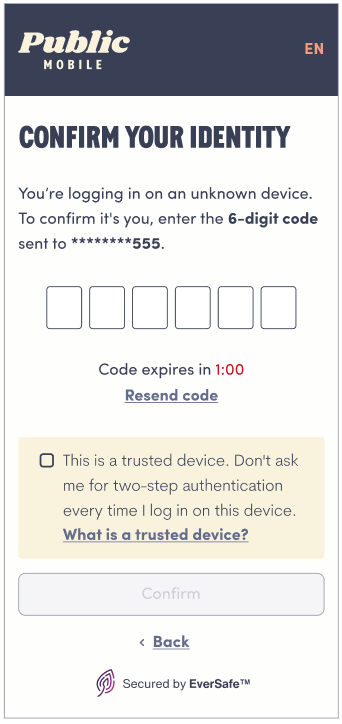
- Access Public Mobile digital support: When visiting from a non-trusted device, you will be prompted to perform email and/or SMS OTP verification to confirm your identity.
- Mark the device as trusted: During OTP verification, you will see a checkbox to mark the device as a trusted device. Check the box and select ‘Confirm’ to register your device as trusted.
Note: Setting up a trusted device is also required before you can enable biometric authentication (Face ID or Fingerprint ID) in the Public Mobile app. For more information on setting up biometric authentication, see our help article.
To remove a device from your list of Trusted Devices, follow these steps:
- Access the EverSafe portal: You can find the portal in either of these locations:
- My Account: Go to the Profile section
- Community: Go to My Settings > Personal > Account Information
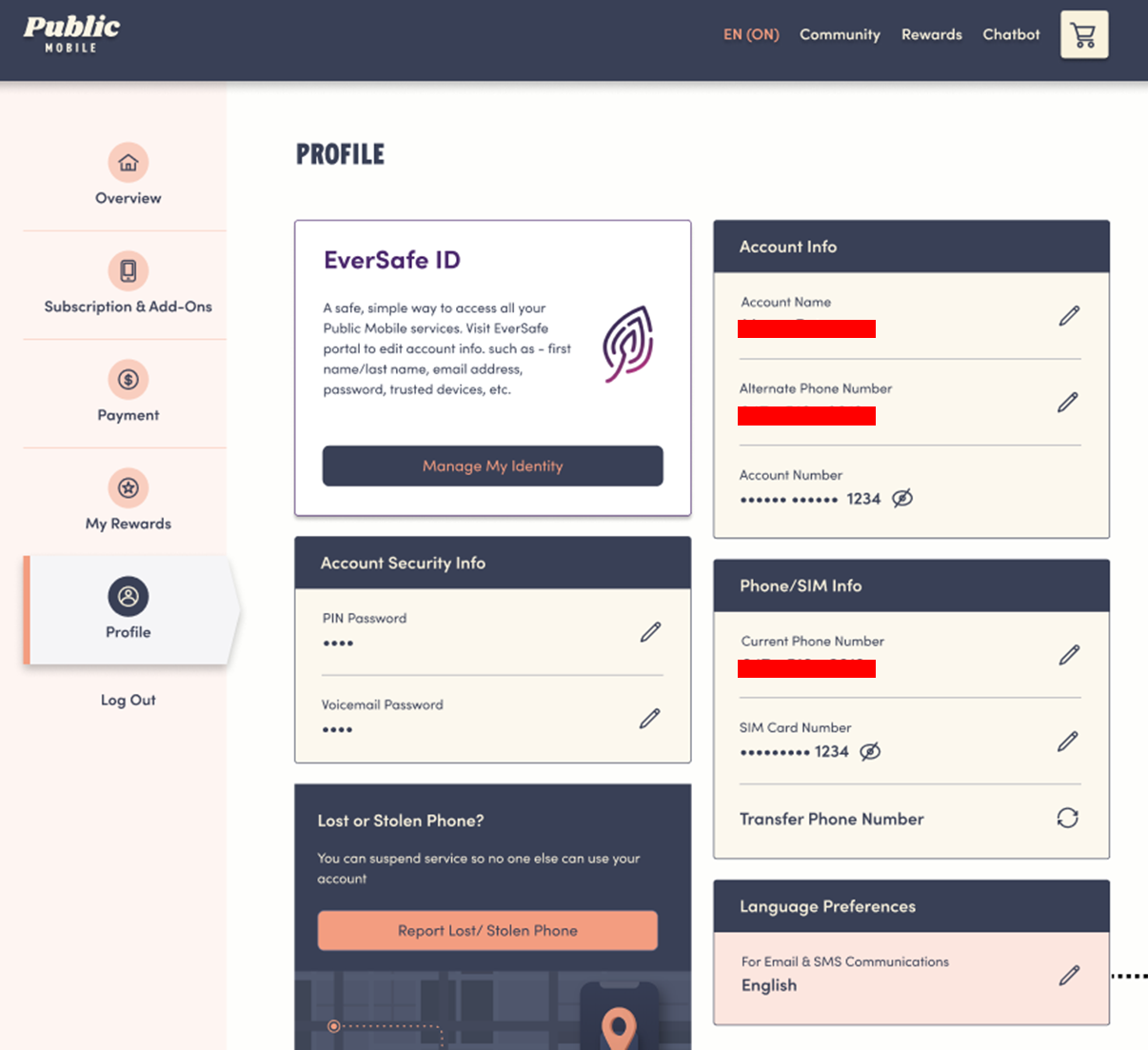
- Remove the device: From the EverSafe portal, you can choose to remove the device from your list of Trusted devices.
Was this article helpful?

Still have questions? Ask our community.
Our community forum is made up of Public Mobile customers just like you, all there to ask questions, find solutions, and make the Public Mobile experience better.